Inventory Reorder Status

Inventory Reorder Status in Tally.ERP 9

The Reorder Status gives you information on available stock, reorder level, minimum reorder quantity and accordingly the next order to be placed by the business concern.

This report will help you in taking the appropriate decision for timely Purchase of Materials and will readily provide all relevant information required for placement of a Purchase Order.
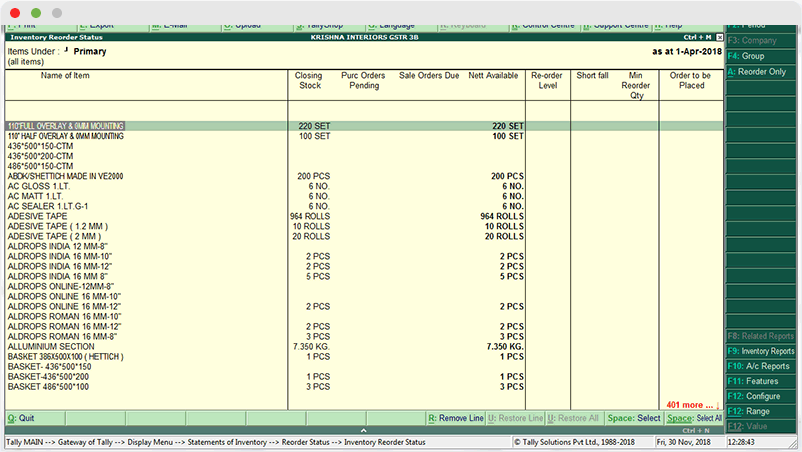
Tally_ERP_Inventory_Inventory_Reorder_status

How to Configure in Tally Prime :

1. Enable Inventory Features:

  • Go to: F11 → Inventory Features
  • Enable:
    • Maintain stock categories – if you group by categories.
    • Use Reorder Levels
    • Enable Sales and Purchase Orders

2. Create / Update Stock Items:

  • Go to: Gateway of Tally → Inventory Info → Stock Items → Create/Alter
  • For each item:
    • Set Units (e.g., Pcs).
    • Assign to a Stock Group.
    • Set Reorder Level (optional, but needed for Shortfall and Order to be Placed).
    • Set Minimum Reorder Quantity.

Example:
Item: 50-50 Biscuits

  • Reorder Level: 500 Pcs
  • Minimum Reorder Qty: 100 Pcs

You can also Enable Reorder Level in

Masters -> Alter –> Inventory Masters ->Reorder Level

3. Enter Opening and Ongoing Stock:

  • Use Inventory Vouchers → Stock Journal / Physical Stock.
  • This will affect Closing Stock.

4. Enter Sales and Purchase Orders (for due/pending orders):

  • Purchase Orders:
    Gateway of Tally → Inventory Vouchers → F9: Purchase Orders
  • Sales Orders:Step-by-Step Tally Configuration:

These get reflected as:

  • Purchase Orders Pending
  • Sales Orders Due

5. Define Reorder Levels:

  • Go to: Gateway of Tally → Inventory Info → Reorder Levels → Set/Alter for Multiple Items
  • Set Reorder Level and Minimum Order Quantity per item.

6. Optional (Godowns if using multiple locations):

  • Enable Godowns in F11, and use them to track stock per location if needed.

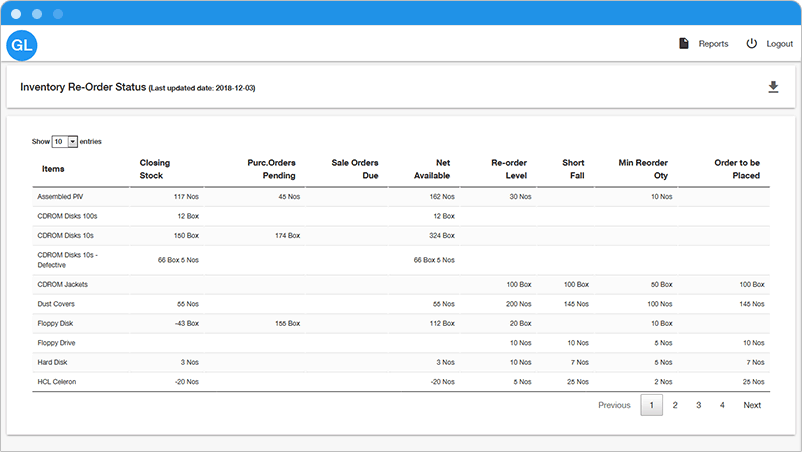
Inventory Reorder Status in Tallygraphs Web Reports
Reset Password
Register