Track your Cost Centre Performance daily from Tally on Mobile and Web
TallyGraphs Cost Centre dashboard enables that all of a company’s business processes are as efficient and effective as possible.
- Track income incurred cost centre-wise
- Compare Business Data Using Cost Centre Capability
- Finance and accounting divisions are familiar with your company and designate cost centres based on the income.
- Take decisions related to a particular department that will help to improve sales
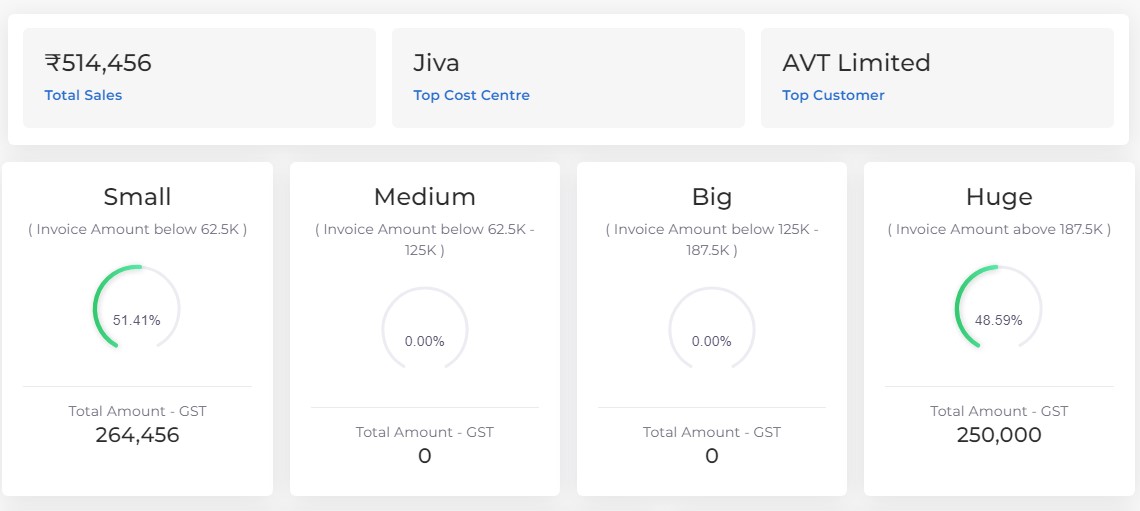
Sales segments
Sales segments indicates total sales amount and their average based on cost centre performance.
- Small –which represents total sales amount less than 10k.
- Medium – which represents total sales amount between 10k – 50k.
- Big – which represents total sales amount between 51k – 5Lakh.
- Huge – which represents total sales amount greater than 5Lakh.
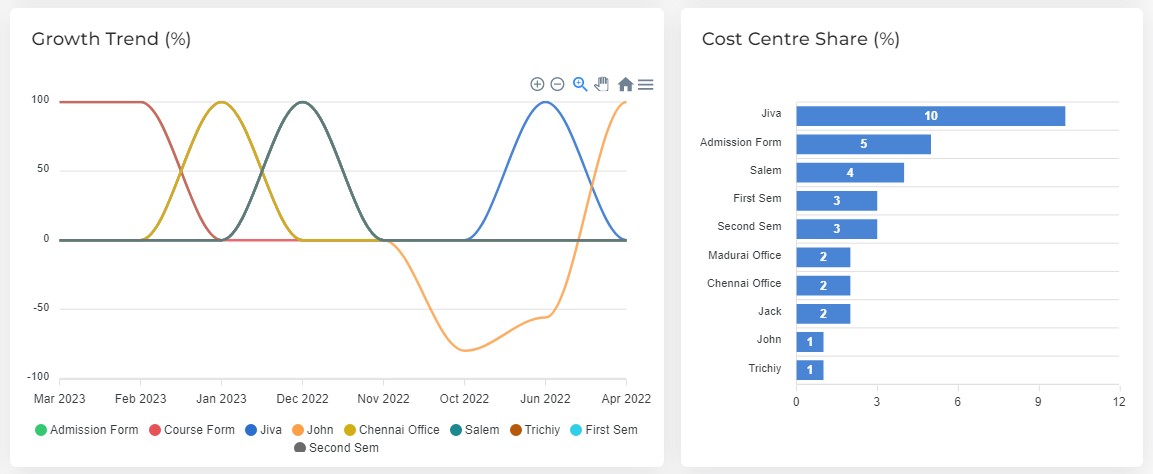
Sales Trend month to month
A detailed graph shows month-wise performance for all cost centres.
Cost Centre Trend shows the total amount of sales for cost centre in month wise. Additionally, this allows us to filter the data on a daily, weekly, monthly, and annual basis.
Top Cost Centre lists the highest (top 10) cost centre according to the total sales amount.
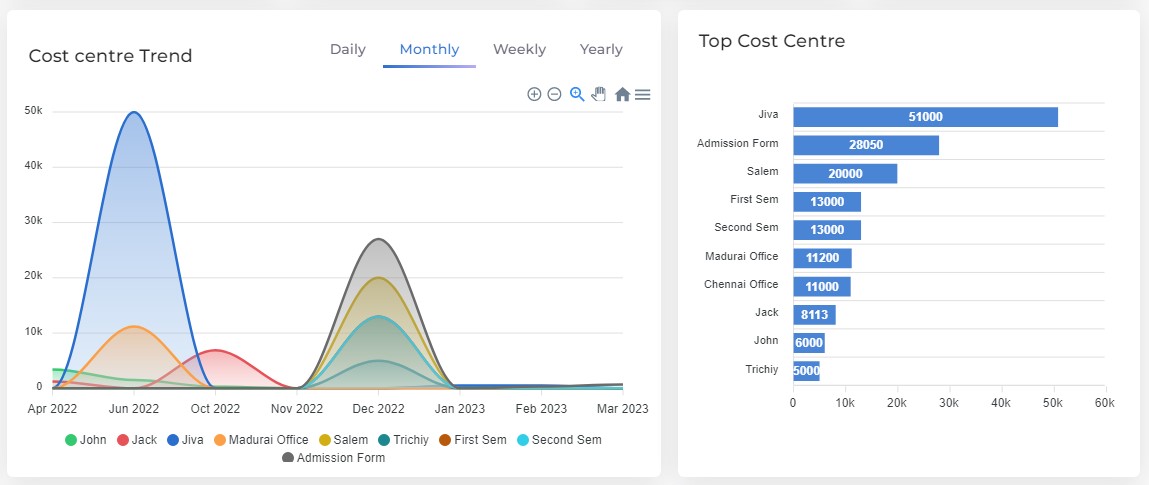
Top Cost Centre
Shows top cost centre based on the sales amount for the entire year.
- Total Sales – indicates the overall total amount of sales.
- Top Cost Centre – indicates the highest cost centre based on overall sales amount.
- Top Customer – indicates the highest customer based on the overall sales amount.
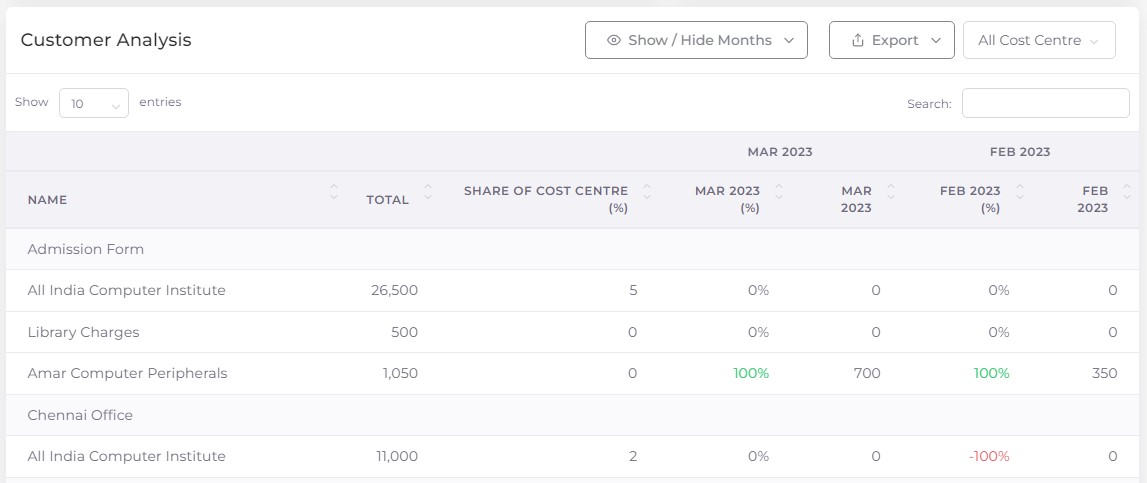
Customer Analysis
The customer analysis table explains the detailed data format for customer performance by cost centre wise, and overall sales for the party can be determined month-by-month.
- Show/Hide Months – using this option,you can select only the relevant month data and also hiding the rest.
- Export – used to download the customer analysis table data in excel and pdf format.
- Cost Centre Filter – helps to display relevant cost centre data by eliminating the irrelevant cost centre temporarily from view.
How to enable the Cost Centre through Tally
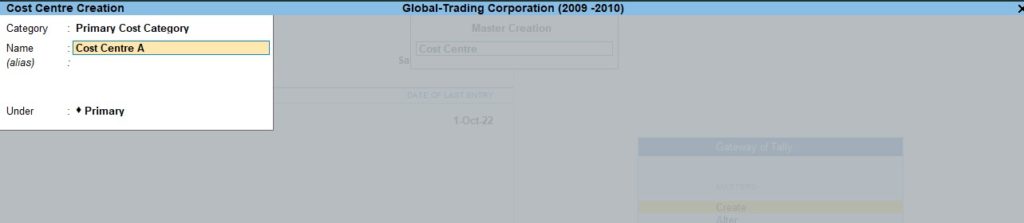
Single Cost Centre
Go to Gateway of Tally —-> Create —-> Cost Centre
Multiple Cost Centre
Go to Gateway of Tally —> Chart of Accounts —> Cost Centres —> Multi-Masters (ALT+H) —> Multi Create

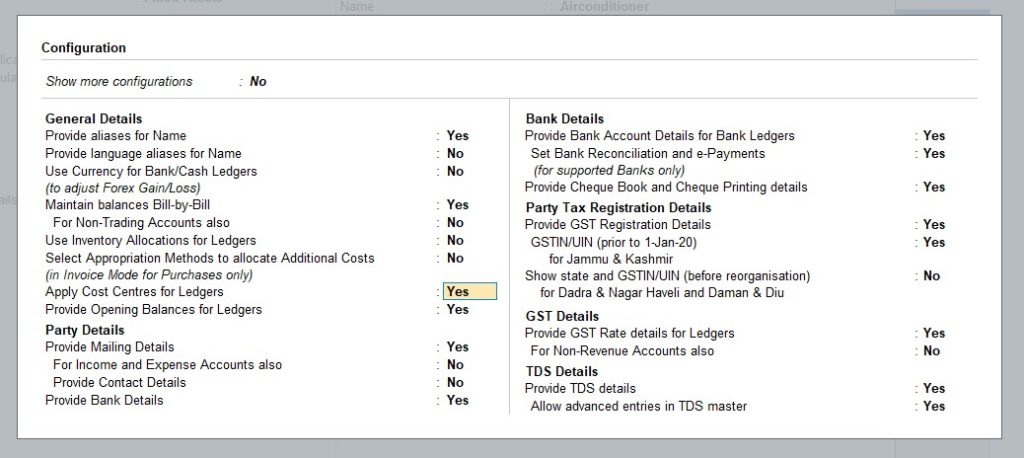
Ledger Alteration
Go to Gateway of Tally —> Alter —> Ledger —> Select Ledger

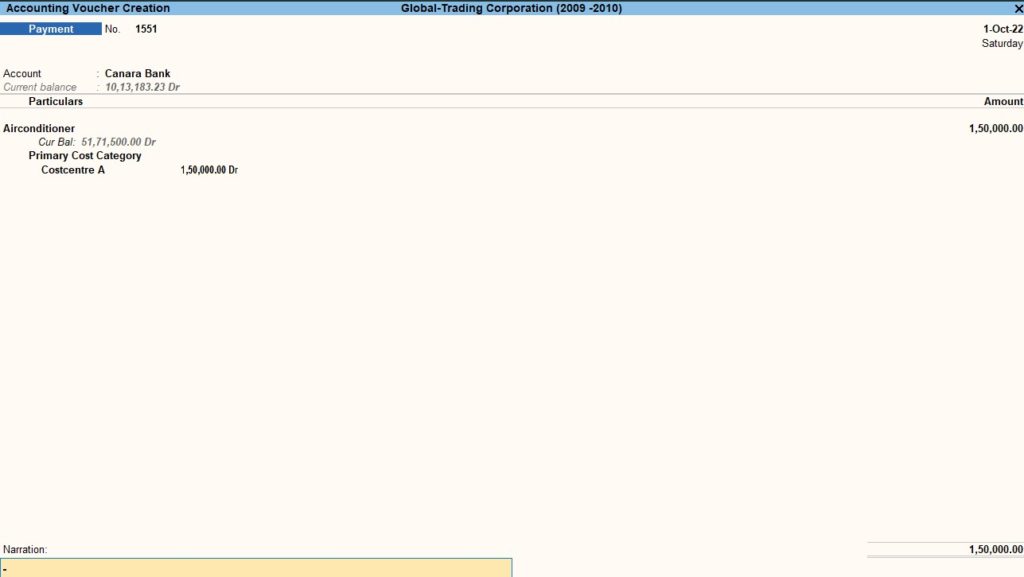
Cost Centre Allocation
Go to Gateway of Tally —> Voucher —> Payment


Reports

Go to Gateway of Tally —> Voucher —> Payment —> Alt+G —> Cost category summary
Filter options
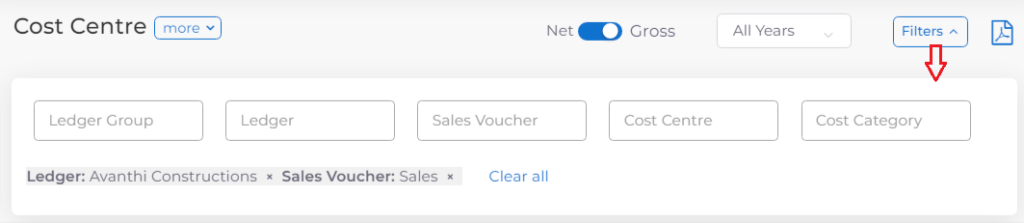
Following filter (Multi Select) options are available in Cost Centre dashboard. Using these multi select filters you can filter the data as per your needs.
More Filters
- Click the filters option to get more filters with multi select.
- Using these filter, you can filter the data by Ledger Group, Ledger, Sales Voucher, Cost Centre, and Cost Category.
- Additionally, you have the option for clearing all of the selected choices or just a specific one.
Net & Gross Filter
- Gross represents the total amount of sales and net represents the total amount of sales after deductions of taxes.
Range Filter
Range Filter, which helps to track the data on a day, week, month, and yearly basis. The options available in this filters are following:
- All year
- Financial year
- Calendar year
- This month
- This week
- Last week
- Last month
- Custom Date