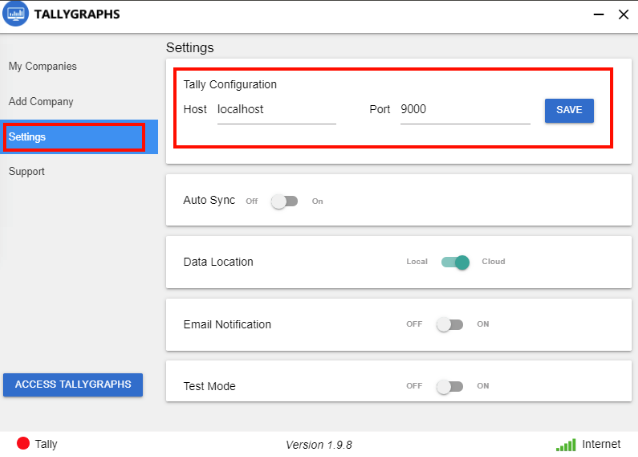
STEP 1 : Install the TallyGraphs Desktop Sync Application where you run your Tally ERP9. If you have a multi-user license, we recommend installing in your server.
STEP 2 : Open the Company you would like to sync in Tally ERP 9.
STEP 3 : Click on Add Company tab in TallyGraphs Desktop Application, select the Company and add.If Your Tally ERP 9 is not connected to TallyGraphs. Check the following settings in your Tally ERP 9.
STEP 4 : Click on the Configuration box located at the bottom right of the screen or press “Ctrl+Alt+F” on your keyboard.
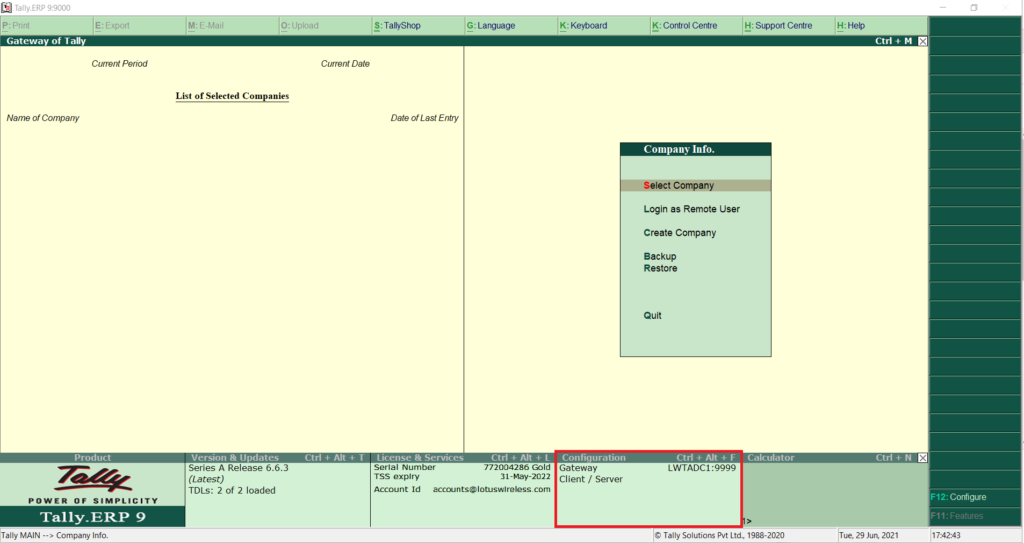
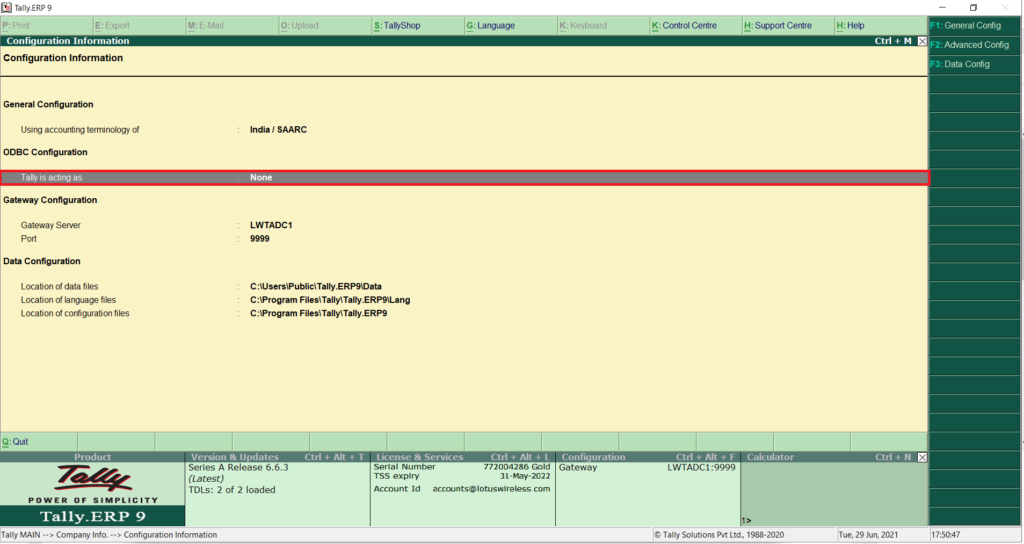
STEP 5 : Go to ODBC Configuration area & select “Tally is acting as” and click Enter
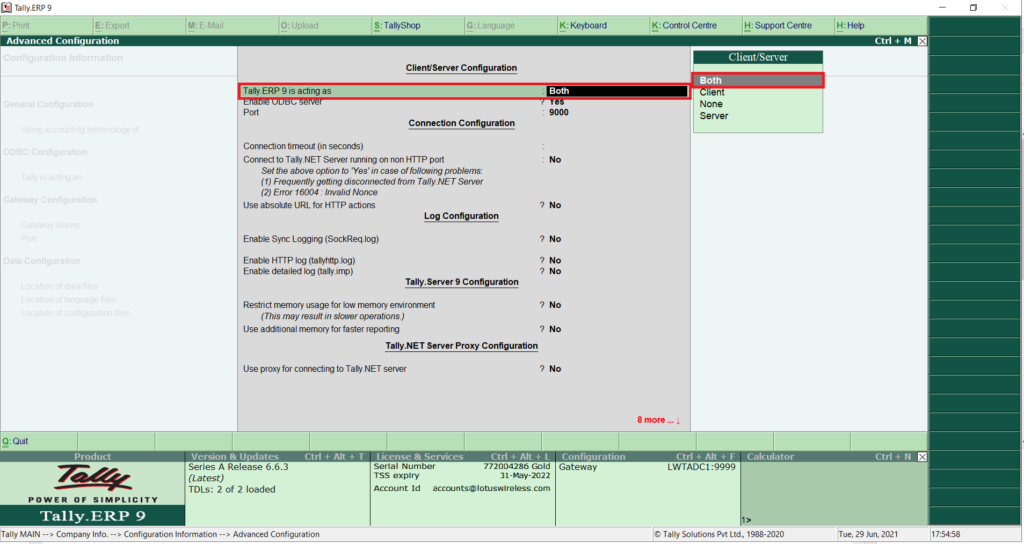
STEP 6 : Under Client Server Configuration Screen:
- Tally is Acting as Both
- Enable ODBC Server ‘Yes’
STEP 7 : Check Port Number: If Port Number is Not 9000, enter your Tally port number in TallyGraphs Desktop Application -> Settings